Prevent accidental editsUse Finder’s Locked checkbox or
chflags uchg.Mac file security guide
You can lock a Mac file against accidental editing with Finder, apply the same immutable flag from Terminal, or use encryption when the goal is to stop other people from reading the data. This guide shows the difference, then helps you choose the least complicated method that actually matches the risk.
For a single document: select the file in Finder, choose File → Get Info, expand General, then check Locked. That protects against accidental edits, but it is not password protection. For confidentiality, use an encrypted disk image, FileVault for the whole Mac, or a dedicated encrypted locker.
A Mac can mark a document as locked so apps are less likely to change it by mistake. Terminal can set the same user-immutable flag. Folder permissions can reduce what another account can do. Encryption is different: it protects the data itself from being read without the right credential.

The most common mistake is treating all four ideas as interchangeable. A Finder lock is ideal for a finished spreadsheet you do not want to overwrite. It is not a privacy boundary against someone who has access to your Mac account. An encrypted container is better for tax records, client documents, scans of IDs, or any folder that should remain unreadable when closed.
chflags uchg.Yes. Finder can apply a Locked attribute to documents, while stronger privacy requires encryption.
The steps are the same on MacBook Air, MacBook Pro, iMac, Mac mini, and other Macs running supported macOS versions.
You can restrict a folder with permissions or Terminal flags; use encryption if you need password-gated confidentiality.
The built-in methods need no download. The right preparation is mostly about avoiding self-lockout and deciding whether you need edit protection or true privacy.
The product information supplied by the developer positions Folder Lock 10 for macOS 13 and newer. That places Ventura 13, Sonoma 14, Sequoia 15, and later releases inside the stated Mac range, while the built-in Finder, Terminal, permissions, Disk Utility, and FileVault methods remain separate macOS features.

The developer lists macOS 13 as the starting point for Folder Lock 10 on Mac. The built-in methods in this guide are available independently of Folder Lock.
Folder Lock sits alongside Finder flags, permissions, encrypted disk images, and FileVault rather than replacing those native controls.
The same selection rule applies: use a file flag for accidental-change protection and encryption when confidentiality is the goal.
The developer’s change log shows active work to keep the interface aligned with newer macOS releases. After a major OS upgrade, verify the current store listing before moving or changing protected data.
The same file can need very different protection depending on whether you are guarding against your own accidental edits, another user on the same Mac, or someone who gets the storage device.
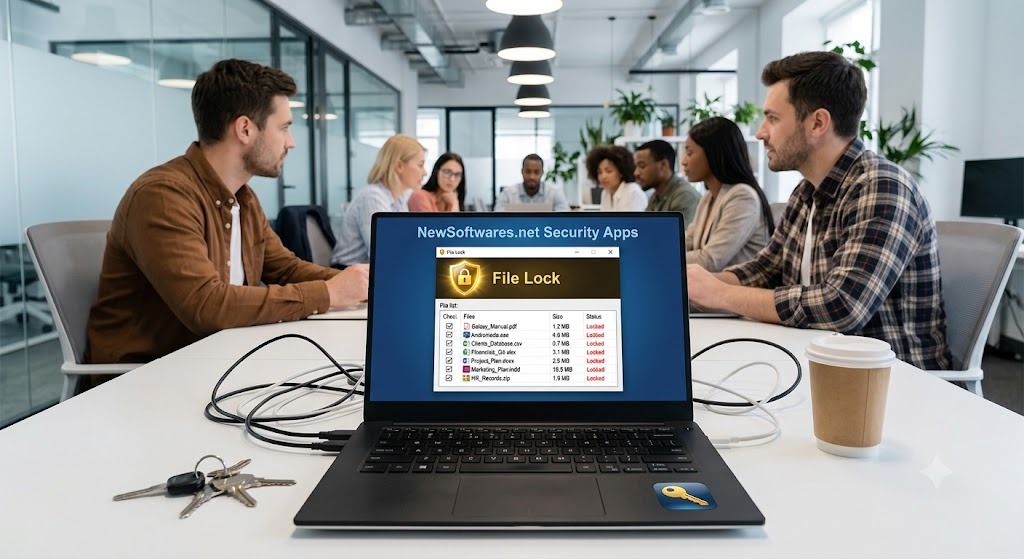
Use Finder Locked when a document is final and still needs to remain easy to open and read.
Use permissions to control who can read or write a folder. Do not rely on hiding alone.
Use encryption for financial records, IDs, client files, or anything that should be unreadable when closed.
Use FileVault when the concern is loss or theft of the Mac rather than one specific folder.
Start with the least invasive method that achieves the outcome. These approaches are ordered from lightweight edit protection to stronger confidentiality.
Finder’s Locked checkbox is the simplest answer when the real problem is accidental editing or deletion. It does not create a password prompt and should not be treated as encryption.
The uchg flag marks a file as user immutable. In practical terms, it corresponds to the Finder lock attribute and is useful when you want a repeatable command or need to handle several files.
chflags uchg "/path/to/your/file"

# unlock it again
chflags nouchg "/path/to/your/file"
Tip: type chflags uchg with a trailing space, then drag the file from Finder into the Terminal window. macOS inserts the full path for you.
For a folder rather than one document, permissions are the built-in tool that Apple points to. In Finder, open Get Info, expand Sharing & Permissions, and review which users have Read & Write, Read only, or No Access.
Permissions make the most sense on a Mac with separate user accounts. They are weaker if multiple people share the same login, because the account itself is the security boundary.
Disk Utility can create an encrypted disk image that mounts like a drive after you enter its password. This is a strong built-in answer when you need a password around a set of files but do not want to encrypt the entire Mac.
FileVault is full-volume encryption. It is excellent protection against someone trying to access data from a lost or stolen Mac without an authorized login, but it is not a per-folder vault. Once you are logged in, your normal files are available to your account.
Use FileVault as a baseline device-security measure, then add a separate encrypted container or locker when specific data should remain gated even during a normal session.
A dedicated encryption app can combine local encrypted storage, cloud-linked lockers, cross-device access, and a simpler interface than building your own encrypted images. The tradeoff is that you depend on a vendor’s compatibility, account model, and recovery design.
Before installing any security app, verify the macOS minimum, encryption model, where encrypted data is stored, and what happens if you forget the credential. We introduce our specific recommendation only after the comparison below.
Finder path: select the file → File → Get Info → General → Locked. Use this when you want a visual, reversible setting and the file is already where you want it.
Terminal path: run chflags uchg followed by the file path. Use chflags nouchg to reverse it. This is useful when a workflow needs repeatable commands.
The most secure option is not automatically the best option. Choose the method that solves your actual problem with the lowest recovery risk.
| Method | Difficulty | Security | Cost | Best for | Limitations |
|---|---|---|---|---|---|
| Finder Locked | Easy | Low to moderate | Free | Preventing accidental edits | No password; not confidentiality |
Terminal uchg | Easy–medium | Low to moderate | Free | Repeatable immutable flags | No password; requires command comfort |
| Finder permissions | Medium | Moderate | Free | Separate Mac user accounts | Weak if everyone shares one account |
| Encrypted disk image | Medium | High when closed | Free | Password-gated folder-like storage | Manual mount/eject workflow |
| FileVault | Easy | High at rest | Free | Whole-Mac theft protection | Not a separate folder lock after login |
| Dedicated encrypted locker | Easy–medium | High when properly implemented | Free or paid | Ongoing private-file workflow | Vendor compatibility and recovery model matter |
| Editorial verdict | Use Finder Locked for accidental edits; use encryption when another person must not be able to read the contents. | ||||
We evaluate dedicated tools by the workflow they add beyond macOS, not by the number of features in a marketing list.
A useful folder security app should keep protected files encrypted when the locker is closed and make everyday access straightforward when you intentionally open it.
Private working folders you open often.
A single final document that only needs edit protection.
The key value is encrypting data before or while it is stored in a cloud-synced location, so cloud convenience does not have to mean keeping sensitive files in ordinary readable form.
People already using Dropbox, Google Drive, or OneDrive.
Sync conflicts, version history behavior, and app compatibility after macOS upgrades.
Cross-device access can be valuable if your secure files need to move between Mac and mobile. The security model should still be clear: know which device holds keys and what account recovery can and cannot restore.
People working across a Mac and mobile devices.
Device limits and whether every platform offers the same functions.
Some tools also store secure notes, passwords, cards, and identity details. That can reduce scattered sensitive information, but it also increases the importance of a good master-password and recovery strategy.
People who want one private workspace for files and structured secrets.
Do not store the only copy of a critical recovery credential inside the same vault it unlocks.
Of the options covered above, we recommend Folder Lock when you need a repeatable encrypted workspace rather than a simple Finder flag. The Mac edition uses AES-256 encryption for its locker workflow and offers a local Desktop Locker alongside dedicated lockers for Dropbox, Google Drive, and OneDrive.

The product becomes more useful when private files need to move between devices or be shared with approved people. The developer’s comparison also includes device synchronization, protected notes and other sensitive records, plus controlled sharing in the Pro tier. We would still choose Finder for a single document that only needs protection from accidental edits.
There are limits worth knowing before you commit. The free tier has storage and device caps, sharing and the Secrets area are reserved for Pro, and the developer’s Mac release notes state that the Windows Safeguard feature is not part of the Mac edition. The developer also reports more than 101 million downloads for Folder Lock over its product history; that is adoption context, not a substitute for evaluating the security model.
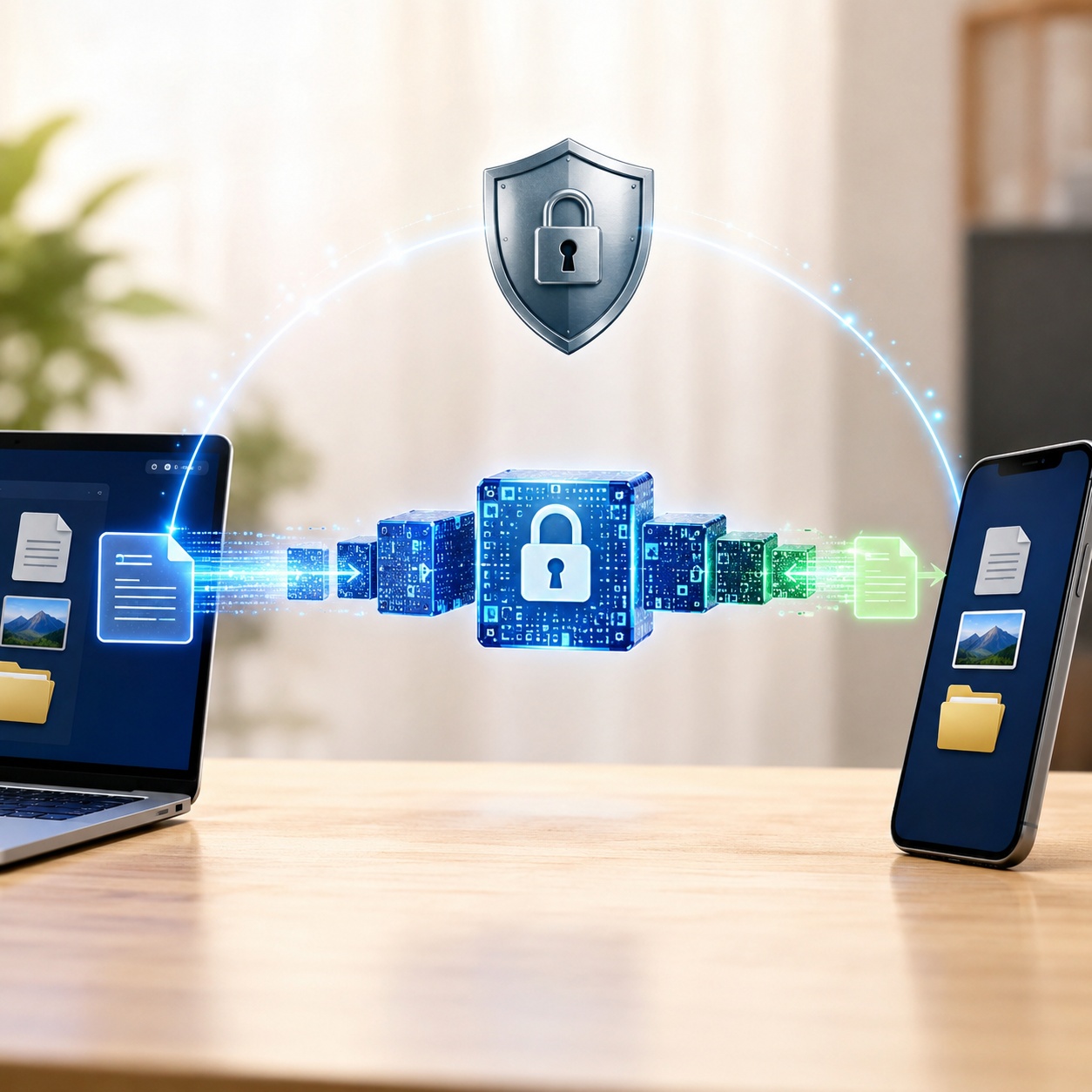
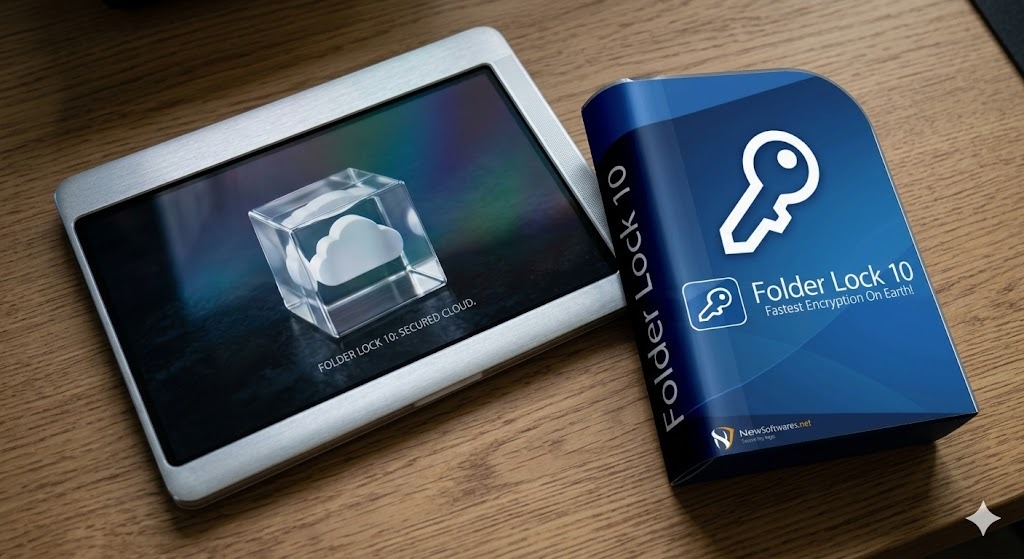
A simplified editorial illustration of the workflow, not a product screenshot.
The product is most relevant when selected files need their own encrypted workspace, especially when the same protected collection must stay usable across local storage, cloud folders, or several devices.

The developer’s change log identifies version 10.1.9, dated April 2, 2026, as the point when future Mac updates shifted to the App Store. Users coming from the older website-installed build are advised to remove that application before installing the store version so two copies do not coexist. The developer states that the encrypted data itself is intended to remain intact during that transition.
Updates leading up to that change concentrated on compatibility and usability rather than a new encryption model. The notes mention interface work for newer macOS releases, keyboard accessibility, account deletion, shared-folder permission controls, purchase and sign-in fixes, dark-mode cleanup, and repairs to update and sharing flows.
These tools turn the differences above into a practical recommendation. They run entirely in your browser and do not upload your answers.
0 of 7 completed
This is the dedicated-tool route. It makes sense when Finder’s Locked attribute is too weak and an encrypted disk image feels too manual for files you use regularly.

Use the Mac App Store release and confirm that your Mac is running macOS 13 or newer. If an older web-distributed copy is still installed, remove that application before adding the store build so you do not end up with duplicate installations.
Use a strong unique credential and record your account details in a secure place outside the locker.
Choose a local Desktop Locker for files that stay on the Mac, or a supported cloud-linked locker when you need synchronized storage.
Move or copy a non-critical file into the locker, close it, then confirm the file is accessible only through the expected protected workflow.
Organize by purpose so you can verify each batch. Keep an independent protected backup before deleting any original copy.
Check device access, subscription status, backup location, and owner-safe recovery options before relying on the locker as your only copy.
Finder’s Locked control maps to a file flag. For ordinary files, the user-immutable flag is the relevant concept. It is useful for preventing changes, but it is not a secrecy mechanism.
Read-only usually describes permissions: an account can read the item but not write to it. Locked is a file flag applied to the item itself. Both can reduce modification, but they operate through different mechanisms and neither encrypts the content.
Gatekeeper and System Integrity Protection are platform defenses, not folder-locking tools. Security apps still need to follow macOS permissions and signing requirements. After a major macOS upgrade, verify that a third-party app explicitly supports the release before changing protected data.
Use a file lock when the concern is accidental modification. Use a per-folder encrypted container when selected data needs its own credential boundary. Use FileVault when you need whole-device data-at-rest protection.
Do not attempt bypass or cracking. Confirm you are using the correct app/account, check your password manager and documented recovery material, verify subscription and device status, and use the vendor’s official support channel. If the encryption design has no backdoor and the password is truly lost, recovery may not be possible.
The Mac edition separates storage by locker type. Desktop Locker is the local option, while Dropbox, Google Drive, and OneDrive each have a dedicated cloud-linked locker. The practical advantage is that encryption can remain part of the workflow before protected files are synchronized through those services.
The developer describes the initial Mac 10.x release as broadly aligned with the Windows edition, but specifically excludes Safeguard on Mac. Cross-platform availability therefore does not mean every desktop feature is identical on every operating system.
These options solve different jobs. This comparison is about fit, not declaring one universal winner.
For speed, avoid treating one benchmark as universal: encryption overhead depends on Mac hardware, file size, storage type, and whether a container is local or synchronized. FileVault is integrated at the volume level, while VeraCrypt and locker-style tools add their own container workflows. Compare security architecture and usability first, then test performance with representative files on your Mac.
| Option | Primary job | Password-gated folder workflow | Cloud-linked lockers | Whole-device protection | Best fit |
|---|---|---|---|---|---|
| Built-in macOS options | |||||
| Finder Locked | Prevent changes | No | No | No | Finished files |
| Disk Utility image | Encrypted container | Yes | Manual file-based sync possible | No | Free password-protected folder substitute |
| FileVault | Full-volume encryption | No separate vault after login | No | Yes | Laptop theft protection |
| Dedicated tools | |||||
| Folder Lock | AES-256 encrypted lockers, sync, sharing, and private records | Yes | Dropbox, Google Drive, OneDrive | No | Frequent local/cloud protected-file workflow |
| VeraCrypt | Encrypted volumes/containers | Yes | Not a native cloud-locker workflow | Can encrypt non-system volumes | Technical users who prefer open-source containers |
| Verdict | For the simplest built-in password-gated container, use Disk Utility. For whole-Mac at-rest protection, use FileVault. For a more managed ongoing locker workflow, Folder Lock is easier for many users. | ||||
| Problem | Likely cause | Safe fix |
|---|---|---|
| The Locked checkbox is missing | The item type or app does not expose that Finder control. | Use permissions, Terminal flags, or an encrypted container depending on the goal. |
| I can still read the file | Finder Locked is not designed to hide or encrypt content. | Use an encrypted disk image or dedicated encrypted locker for confidentiality. |
| I cannot modify a file I own | The immutable flag may still be set. | Uncheck Locked in Get Info or run chflags nouchg on the file you own. |
| A shared-user setup is confusing | Multiple people may be using one macOS account. | Create separate user accounts, then set appropriate folder permissions. |
| Folder Lock will not install | Your Mac may be below the developer’s stated macOS 13 minimum, or you may still be using an older website-distributed installer. | Confirm the macOS version, remove an obsolete web-installed copy if necessary, and use the current Mac App Store release. |
| Cloud files are not syncing as expected | Cloud clients and encrypted locker workflows can conflict or lag. | Pause changes, confirm sync status, and avoid deleting the only local copy until the protected version is verified. |
| I forgot an encryption password | The credential or account recovery path is unavailable. | Use documented owner recovery, password managers, recovery keys, license/account records, and official vendor support. Do not use bypass tools. |
| I locked the wrong folder | A recursive command or broad selection affected more items than intended. | Work from a known path, inspect file flags, and reverse only the flag you intentionally set. |
uchg rather than encryption?The developer’s comparison lists a $0 Free tier and a $39.95 Pro price. It does not define the billing cadence in the material used for this guide, so confirm the live amount and purchase terms in the Mac App Store before paying.
The free plan lists 1 GB for each of the Desktop, Dropbox, Google Drive, and OneDrive locker categories, along with synchronization on up to 2 devices. Sharing and Secrets are not included.
Pro removes the listed capacity cap for the four locker categories, raises the synchronized-device allowance to 5, and enables both shared-user access and the Secrets area.
| Capability | Free | Pro |
|---|---|---|
| Desktop Locker | 1 GB | No capacity limit listed by developer |
| Dropbox Locker | 1 GB | No capacity limit listed by developer |
| Google Drive Locker | 1 GB | No capacity limit listed by developer |
| OneDrive Locker | 1 GB | No capacity limit listed by developer |
| Synchronized devices | Up to 2 | Up to 5 |
| Share with approved users | Not included | Included |
| Secrets / private records | Not included | Included |
| Mac / Windows / iOS / Android app availability | Listed | Listed |
Security gets easier when the folder structure is simple. Separate working files from archives. Keep identity documents apart from ordinary photos. Put records with different retention rules into different folders so you do not have to open a large vault just to retrieve one item.

For business use, document who is authorized to open each protected set, how recovery works, and where backups live. A lock that only one employee understands becomes an availability risk. For personal use, the same principle applies: future you should be able to identify the protection method and find the legitimate recovery material.
ls -lO on the file and look for the user immutable flag. Reverse it with chflags nouchg when you intentionally need edits again.Recommended: Finder Locked.
Why: minimal friction and exactly matched to accidental edits.
Folder Lock fit: unnecessary unless the files are confidential too.
Recommended: separate user accounts + permissions.
Why: access control works better when each person has an account.
Alternative: encrypted container for especially private data.
Recommended: encrypted disk image or dedicated locker.
Why: confidentiality matters more than edit protection.
Folder Lock fit: good if you open these folders frequently.
Recommended: FileVault.
Why: it protects data at rest across the Mac.
Folder Lock fit: complementary for selected data, not a FileVault replacement.
These are illustrative scenarios, not customer testimonials.
Finder Locked is the better fit. Adding an encrypted app would create extra steps without solving a new risk.
Use FileVault for the laptop as a whole and an encrypted image or locker if those records should have an extra closed-container boundary.
Create separate macOS accounts first. Permissions and shared-folder rules are clearer when identity is not collapsed into one login.
A cloud-linked encrypted locker can be more convenient than manually moving disk images, as long as you test sync and recovery before migrating the only copy.
The developer republishes customer feedback credited to Capterra. Rather than repeat those reviews, we use them as anecdotal evidence about day-to-day priorities, not as proof of cryptographic strength.

Feedback from people in finance, legal work, administration, and other professional roles repeatedly centers on having a distinct place for sensitive records on machines used for everyday work.
Several reviewers emphasize regular use over long periods. That matters because a protection method only helps if people can consistently open, close, organize, and recover their own data without abandoning the workflow.
Long-term feedback includes cases where users needed help resolving their own access problems. For any encrypted locker, support quality, saved credentials, device records, and a tested backup plan are part of practical reliability.
Not all feedback is uniformly positive. One recurring concern in the supplied review set is a desire for stronger cloud or transfer workflows, which is a useful reminder to test your exact sync pattern before moving the only copy of important files.
Review source referenced by the developer: Capterra’s Folder Lock listing. Individual experiences can vary by version, platform, configuration, and support history.
Select the file in Finder, choose File → Get Info, expand General, and check Locked. Use this for accidental-change protection, not secrecy.
It marks the document as locked so it is harder to change accidentally. macOS can still delete a locked document after warnings, and the contents remain readable to an authorized user.
Finder Locked is the simplest built-in option. For account-based restrictions, use permissions. For confidentiality, use encryption instead.
The Finder Locked checkbox does not add a password. Use an encrypted disk image in Disk Utility or a dedicated encrypted locker when you need credential-gated access.
Use Sharing & Permissions when the goal is controlling access between Mac user accounts. Use an encrypted disk image or locker when the folder’s contents must be unreadable without a password.
You can select files together in Finder where the Locked attribute is available, or use Terminal with carefully scoped paths. Test on copies before using recursive commands.
Run chflags uchg "/path/to/file". To unlock a file you own, run chflags nouchg "/path/to/file".
Clear the Locked checkbox in Finder Get Info, or remove the user immutable flag with chflags nouchg. If the item is encrypted instead, use the legitimate password or recovery route for that encryption system.
To stop accidental edits, use Finder Locked. To require a password to open the PDF itself, use a PDF tool that supports document encryption, or store it inside an encrypted image or locker.
Yes. Finder’s Locked attribute is about preventing changes, not blocking reading. Use encryption if the contents must stay private.
Locking reduces changes or access depending on the mechanism. Hiding mainly changes whether the item appears in normal browsing. Hiding alone is not a strong security control.
We do not provide bypass methods. For a folder you own, use the software’s documented account recovery, recovery keys, license records, backups, and official support channels.
It depends on the method. A folder flag can affect operations on the folder itself, while permissions can govern access and encryption protects the stored contents. Test the exact workflow on non-critical data.
No. Locking can mean a file flag, permission restriction, or app-level access control. Encryption transforms the stored data so it cannot be read normally without the decryption credential.
Yes. A dedicated encrypted locker is designed for frequent open/close use. An encrypted disk image is also practical, but it involves mounting and ejecting the image manually.
Reveal hidden items and inspect the protection method. For confidentiality, close or eject the encrypted container and verify the contents cannot be opened as ordinary files without the expected credential.
If you need to apply the same immutable flag to several known files, Terminal is faster than opening Get Info one by one. Keep the command narrowly scoped to the exact paths you own, and avoid recursive flags until you understand how they affect directories.
For a small batch, the safest workflow is to put copies in a test folder, apply the flag, verify with ls -lO, then repeat on the real files.
Finder Locked can prevent accidental changes to the ZIP archive itself, but it does not password-protect what is inside. If confidentiality matters, store the archive in an encrypted disk image or encrypted locker.
Do not confuse “locked” in Finder with an encrypted ZIP format. They solve different problems.
On a personal Mac, the reliable answer is encryption rather than a hidden-folder trick. An encrypted disk image gives you a built-in credential gate. A dedicated locker can make frequent access and cloud-linked storage more convenient.
If multiple people use the Mac, separate user accounts and permissions should still be part of the setup.
A locked flag marks the file against changes. Read-only is usually a permission state describing what a particular user or group can do. Neither automatically encrypts the data.
When troubleshooting, check both flags and permissions rather than assuming one setting explains every access problem.
Use only owner-authorized recovery. Confirm the exact Folder Lock version and account, check saved credentials and subscription/device details, and contact NewSoftwares support if the app cannot open a locker you own.
For strong encryption, there may be no universal recovery bypass. Keep protected backups and recovery information before you move the only copy of important data into any encrypted system.
The current Mac product offers local Desktop Locker storage and cloud-linked lockers for supported services. The exact on-disk paths are implementation details that can change, so use the app’s documented interface rather than moving internal locker files manually.
Manual relocation of encrypted application data can break references or synchronization. Back up through a supported workflow.
You can create an encrypted disk image and place it inside a cloud-synced folder, or use a tool designed around cloud-linked encrypted lockers. The important part is that sensitive contents are encrypted before they are exposed as ordinary readable files in the sync location.
Always test conflict handling and restore behavior with a small sample before migrating a large archive.
Locking can be a policy or file-state control. Encryption is a cryptographic transformation. A locked file may still be readable; an encrypted closed container should not be.
This distinction is why our recommendations separate accidental-edit protection, account access control, and confidentiality instead of treating “lock” as one feature.
On a network share, the server or NAS permissions remain the primary access-control layer. A Finder file flag on one Mac does not replace server-side identity and authorization. If confidential files must remain private even from storage administrators, use an encryption workflow designed for files that will live on the share.
Test locking, sync, file naming, and restore behavior with a non-critical folder because network file systems can handle metadata differently from the local APFS volume.
macOS privacy controls can limit what apps are allowed to access, but they do not convert Finder’s Locked checkbox into encryption. Treat platform privacy, file flags, permissions, and encryption as separate layers.
When a security app requests new permissions after an OS upgrade, verify the request against the developer’s current documentation before approving access to sensitive folders.
Mac file locking is straightforward once you separate the outcomes. Finder’s Locked checkbox and chflags uchg are excellent for preventing accidental changes. Permissions help on shared Macs with distinct user accounts. FileVault protects the device at rest. Encrypted images and locker apps are the right category when the contents themselves should stay unreadable until you intentionally unlock them.
For most users who need a recurring private-folder workflow, Folder Lock is a reasonable step up from the built-in file flag because it combines local and cloud-linked encrypted lockers in a dedicated interface. We would still choose macOS’s built-in methods when they fully solve the problem, because simpler security is easier to verify and maintain.